


IMPORTANT INFORMATION:
The mobile number on your account is used to send you a One Time Passcode (OTP) each time you login.
The email address on your account is used to send you notifications of Secure Online Account Messages.
To ensure continued access to your Online Account and its services, please check that all the contact details on your Online Account are correct.
On the Login Details screen – Click “Forgot Password?”
On the Reset Password screen – enter your
- Registered email address
- Date of Birth
You will then be sent an email with a link to reset your password. Please check spam if you do not receive this email.
By clicking on the link, you will be asked to select a new password. The Password is Case sensitive, 8 to 20 Characters, and should include at least one letter and one number.
You will need to verify the new password by OTP or text message to your registered mobile.
If you are not already a St. Paul’s member click the “Join St. Paul’s Now” button below and join online.
You can only register once for Online Account.
- If you are unsure whether you have already registered or have registered in the past and forgotten your login details, call us on 021-4313355.
- The Photo ID and Address verification on your account must be up to date before your Online account is activated.
Username: (Case Sensitive!)
- Create a Username – The Username is Case Sensitive – between 6 and 10 characters.
- Keep this Username as you will require it to Login to your Online account.
Account No:
- Enter your 5 Digit Account/Member Number – the Number only, No letter.
- If you don’t know your Account Number call us on 021-4313355.
Name, Mobile Number, and email address
- Enter these as they appear on your account, if you are unsure contact us on 021-4313355.
- Your mobile number and e-mail address must be unique to your account and not in use by another account.
Password: (Case Sensitive!)
- Create a Password – The Password is Case Sensitive, 8 to 20 Characters, and should include at least one letter and one number
- Keep this Password as you will require it to Login to your Online account
PIN:
- When your Online account has been approved by a staff member at St. Paul’s, a PIN will be issued via Text message to you Mobile Phone.
- Keep this PIN as you will require it, with your Username and Password, as an extra security check to Login to your Online account the first time. You will require it again as an extra security check, if several months elapse between logins.
One Time Passcode (OTP):
You will be sent a new One Time Passcode (OTP) via Text to you Mobile Phone every time you Login, including the first time.

2. Click “Generate One Time Passcode”
The One-Time Passcode (OTP) will be sent by to your phone.
Note: We recommend receiving the OTP via App as text message can be reliant on network coverage and mobile providers.

3. Enter the Code in the space provided & Click ‘I approve this activity’
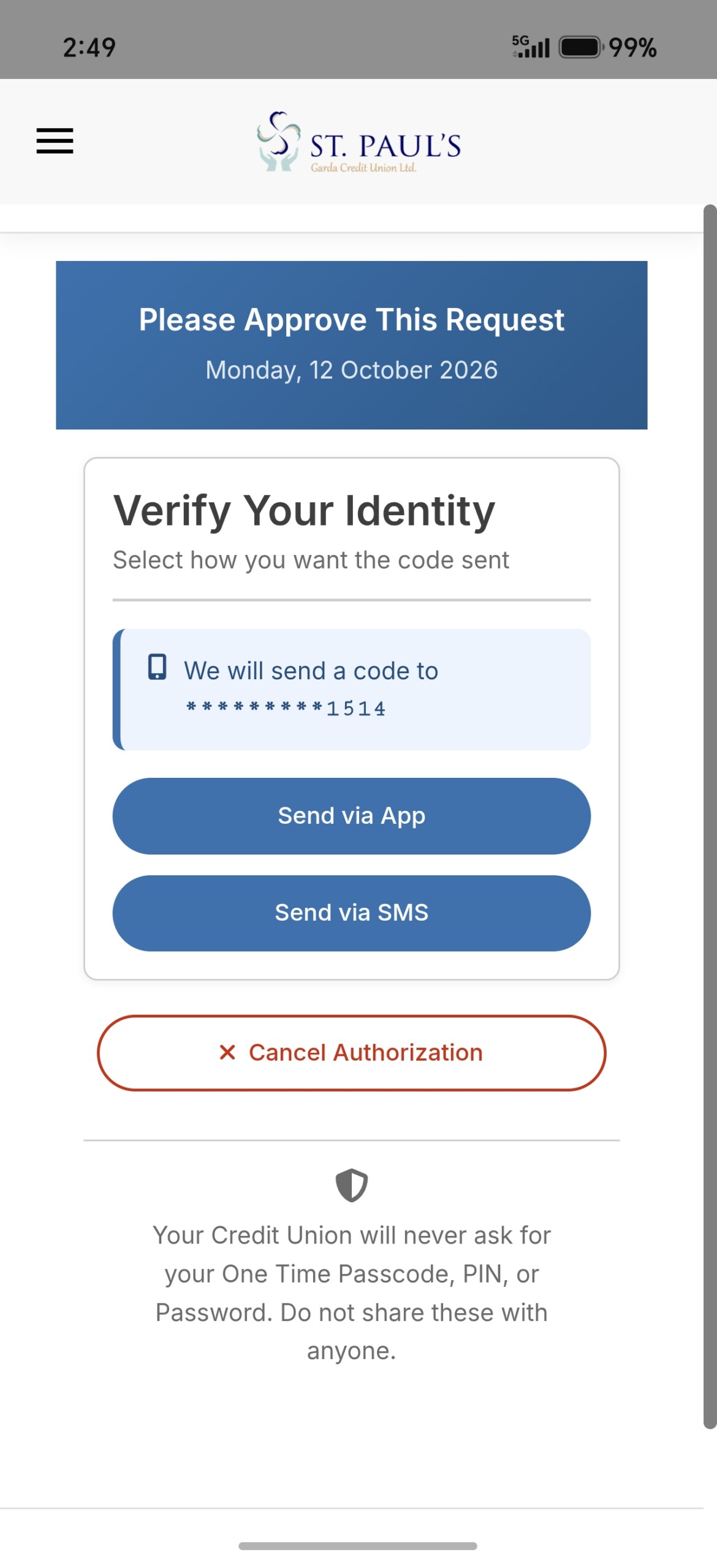
4. The First-Time you Login there is an additional one-time activation security step which is a PIN that is sent to you by text message by the credit union.
Login to your Online Account
- Go to Quick Transfer section on top left of screen
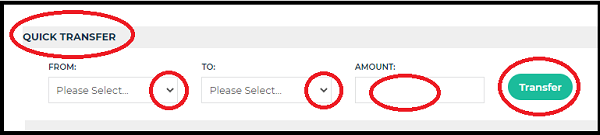
- Select the Account you want to Transfer Funds From – Current Account, Budget, Shares etc.
- Select the Account you want to Transfer Funds To – Current Account or an external Bank Account etc.
- Enter the Amount
- Click the “Transfer” Button
NOTE: The Available Balance in the “From” account will be shown. Some or all of Shares may not be available to transfer if you have guaranteed Shares as security on a loan.
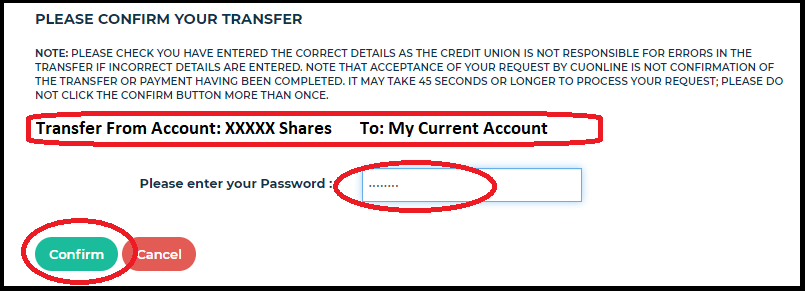
- Check the details and if satisfied
- Enter your Password and Click the “Confirm” Button
- or if the details are incorrect click the “Cancel” Button
NOTE: It may take some time to process your request, Do not Click the Confirm button again.
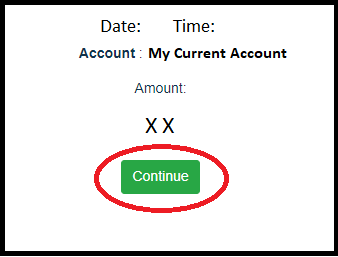
- Date, Time, Account and Amount of Transfer are shown
- Click the “Continue” Button
- See the “Your payment request has been submitted” message
- Click “Close” Button

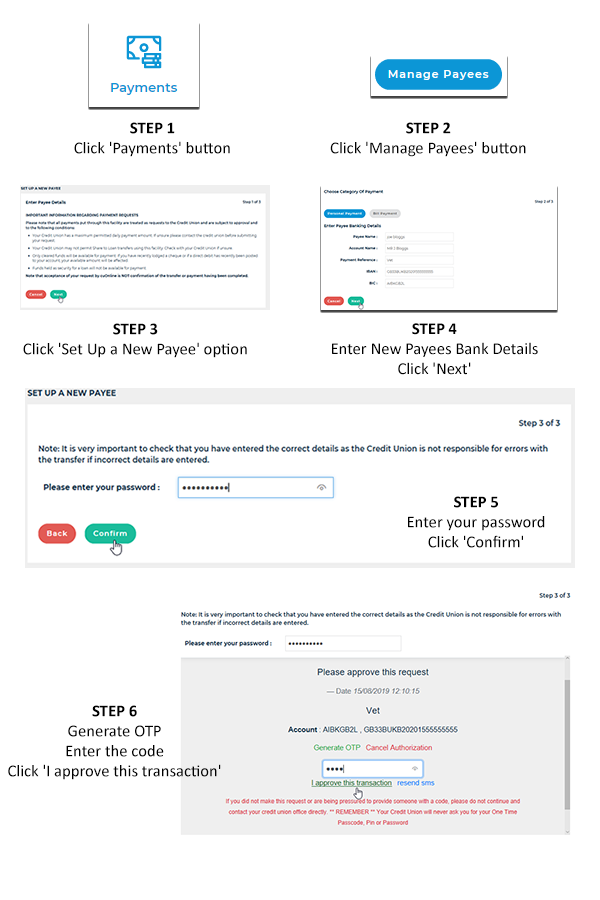
Set up a new payee as follows:
- Click on Payments option on left hand side
- Click on ‘Manage Payees’ button
- Navigate to ‘Set up a new payee’
- Click Next
- Enter the new payees banking details
- Click Next
- Enter your Password
- Click Confirm
- Generate the OTP
- Enter the code
- Click approve transaction to set up the new payee.
Click the “Login to Online Account” Button as normal
On the Login Details screen – Click “Forgot Username”
On the Forgotten Username screen – enter your email address in the space provided
Click “Request Reminder” Button
Your Username will be sent to your email address.
Note: The email address must be your registered Online email. If you have changed your email address call us on 021-4313355
Login to your Online Account
1. Click on your profile picture beside your name on top right of the screen
2. Click “Update Details”
3. Go to the UPDATE PERSONAL DETAILS section on the left of the screen (see screenshot below)
4. Check your email address and update if required
5. You cannot change your Mobile Number online, to change your Mobile Number contact us on 021-4313355 or enquiries@stpaulscu.ie
6. Check your address and Eircode and update if necessary
7. If you changed your address you will get the option to upload an address verification document here
8. Un-tick this box to stop receiving statements by post. It helps us to reduce costs and is kinder to the environment.
9. Click “Confirm” to save your changes and upload the document
Note: We must check the uploaded document and verify the changes, please allow a working day for the updates to be implemented.
You need to keep the Phone Number on your account up to date
If you changed your number contact us on 021-4313355 or
Contact us via email on enquiries@stpaulscu.ie with your Name, Account Number and new Phone Number